nedeľa 20. októbra 2013

Kalendar pre Acer Iconia W3-810


Jednoduchý kalendár testovaný na Windows 8 a Windows 7.


- Kalendár,
- fázy mesiaca,
- meniny,
- kondiciogram (biorytmus),
- poznámky ku dni v mesiaci.


Mená sú uložené v súbore meno.txx.
Je to jednoduchý textový súbor, ktorý sa dá editovať v textovom editore.
Je možné doeditovať v textovom editore aj narodeniny k určitému dňu
(pozri spôsob oddelenia záznamu deň mesiac meno).

Do súboru birth.txt sa ukladá dátum narodenia vybratý v programe.

Jednotlivé poznámky ku dňom v mesiaci sa ukladajú do jednoduchého textového súboru
do adresárovej štruktúry rok - mesiac.


Program Calendar PC je môj vlastný a môžete ho stiahnuť ako freeware z
nasledujúceho linku:

Stiahni CalendarPC

heslo:   jans

Stačí rozbaliť a nakopírovať na disk.
Musí byť nainštalovaný Microsoft .NET Framework 3.5.
Na Windows 8 tablete Acer Iconia W3-810 môže byť už nainštalovaný.

The simple calendar.
Tested on Windows 8 and Windows 7.

Calendar,
month phase,
name-day,
biorhythm,
day notes.

The names are stored in the meno.txx file.
Day notes are stored in the simple text file in the directory structure Year - Month.

You can download as the freeware from the link above.
You need to have instaled Microsoft.NET Framework 3.5.
Unzip and start by exe file. You do not need instal.

Enjoy
JS

sobota 12. októbra 2013

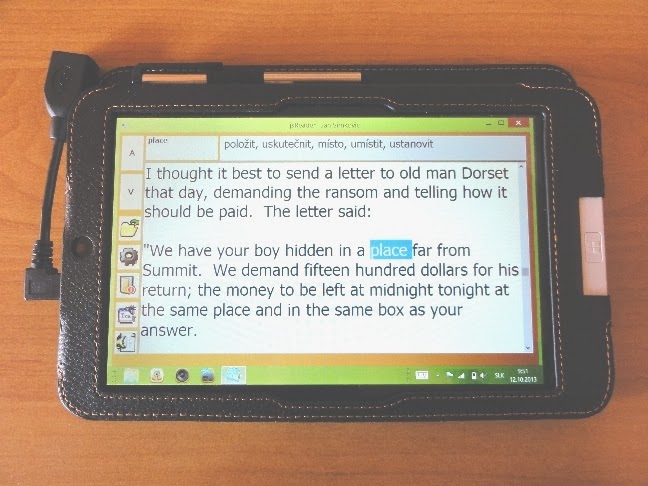
jsReader – txt reader, word translator, text to speech

jsReader on Acer Iconia W3-810

Read *.txt, *.rtf file (UTF-8 code page) .
Translate English - Czech, English - France, English - German.
Text to Speech .
Tested on Windows XP, Windows 7, Windows 8.
You need to instal Microsoft.NET Framework 3.5. On Win 8 it is probably instaled.


Open *.txt, *.rtf file (UTF-8 code page) . Use „Previous Page“ or „Next Page“ buttons.
Double click on the word and the translation will be in the top window.
Click on „Text to Speech“ button for the speech of the double clicked word.

Select part of the word and click on „Translate“ button for the translation or on the „Text to Speech button“.
Select text and click on the „Text to Speech button“.

Click on the „Settings“ button for the settings.

Look in the Dict subfolder in the jsReader folder. There is the dictionary – you can append or change the word meaning by the simple text editor.
Books are stored in the Book subfolder..

You can change the Settings of the Text to Speech (Voice, Voice Speed) by : Start - > Control Panels (Ovladaci panely) - > Speech Recognition (Program Speech) – Text to Speech.

jsReader is my own app and it is free.
You can download it here:


Password:    jans

You need to have instaled Microsoft.NET Framework 3.5.
Unzip and start by exe file. You do not need instal.

Look also the video:


Enjoy
JS

streda 25. septembra 2013

iGO 8 NavNGo and Smartmaps on Acer Iconia W3-810


iGO 8 works fine on Acer Iconia W3-810 with Windows 8. 
If you instal igo zoomer, you can use full windows mode. 
It was tested also with Bluetooth GPS. 
You can buy BT GPS on ebay.


Smartmaps app works fine on Acer Iconia W3-810 with Windows 8. 
You can download also free version:


Look also video:

iGO 8 NavNGo and Smartmaps on Acer Iconia W3-810

Enjoy
JS

streda 11. septembra 2013

Acer Iconia Tab W3-810 64GB

Acer Iconia Tab W3-810 64GB

Intel Atom Z2760 1,5 GHz
2 GB LPDDR2
64 GB

8,1 "TFT LED, multitouch
1280 x 800 bodov

Front Camera (2 Mpx)
Rear Camera (video 1080p, foto 2 Mpx)

Wi-Fi 802.11a/b/g/n
Bluetooth 4.0

1x Micro HDMI (1080p)
1x Micro USB 2.0 (host)
1x Micro SDHC (up 32 GB)
1x Power hole

Battery (6800 mAh)

134,9 x 219 x 11,4 mm (Š x V x H mm)
500 g

Microsoft Windows 8

Pros:
- good battery life
- good size
- win 8, quick start
- can use USB devices and power charge same time
- can use USB dongle, USB external disk, USB CD drive
- can use BT GPS
- good Win 7, XP apps compatibility

Cons:
- no digital pen (only Dagi queer pen)

Review:
http://www.notebookcheck.net/Review-Acer-Iconia-W3-810-27602G03nsw-Tablet.97536.0.html

YouTube:
Video Start:            
Video GIS GPS :    


 Acer Iconia Tab W3-810 


 Acer Iconia Tab W3-810 USB


Acer Iconia Tab W3-810 ArcPad 7


Acer Iconia Tab W3-810 ArcView 3.3


Acer Iconia Tab W3-810  Atlas

Enjoy
JS

nedeľa 10. júna 2012


3.5" Win CE device - Alreader2 eBookReader

It is the best ebook reader for the wince net devices.
There is a lot of settings.
You can use also the dictionary for reading.
For listening you can use GSPlayer with Alreader2.


Look also at:
Alreader2

Look also the video :

Alreader2 video


3.5" Win CE prístroj -  Alreader2 eBookReader


Najlepší ebook reader pre WinCe Net prístroje.
Vela nastavení.
Môžete použiť aj slovníky na preklad.
Na počúvanie textu môžete použiť GSPlayer .


Pozri aj:
Alreader2

Alreader CS

Pozri aj video video :

Alreader2 video

Enjoy
JS

3.5" Win CE device - Open Save Dialog

The big problem in 3.5 GPS device is the Open Save dialog.
There is not possible to save document or open document by OK button of the Open common dialog window, because the dialog windows is to large.

You can change this by registry changes.


After changing the registry settings there is the entire open save windows on the display.


Look also the the video about this problem.

Open Save Dialog Video


3.5" Win CE prístroj - Open Save Dialog

Problem pri 3.5 palcových GPS systémoch je  Open Save dialog.
Nie je možné uložiť alebo otvoriť dokument cez OK tlačidlo, lebo okno je veľmi široké a presahuje display.

Dá sa to zmeniť pomocou registrov.


Po zmene nastavení registrov  sa zobrazí celý Otvor Ulož dialóg.


Pozri tiež video.

Open Save dialog video


Enjoy
JS

nedeľa 1. apríla 2012

Customize maps for Holux Funtrek 130 Pro

Customize maps for Holux Funtrek 130 Pro


You can transform your paper map into internal map in your HOLUX handheld devices.
You can use for this the HOLUX CvtTool a free and simple application that converts paper or electronic maps into downloadable maps for your HOLUX handheld devices.
Scan map - Calibrate and prepare map by CvtTool - Copy the map to the Holux Funtrek - Holux has its own engine for map viewing.

Look at:
http://market.holux.com/EDM/2011/0926/1_Overview.html
Download the CvtTool here:
http://www.holux.com/JCore/en/products/products_download.jsp?pno=402
Here is the manual:
http://market.holux.com/EDM/2011/0926/2_How%20to%20Create%20Maps.html
and here the video course:
http://market.holux.com/EDM/2011/0926/4_Tutorials.html

You create the smf file by the CvtTool program.
Create the HMP directory on the SD CART in the Holux device.
Copy the smf file to the HMP directory in the Holux.
Go to the "Settings - Personal - Customized maps - Click on the created map" on the Holux .
Go to the "G-Finder - click on the eye on the bottom" on the Holux .


Vlastné mapy pre Holux Funtrek 130 Pro

Pre Holux si môžete pripraviť vlastné mapy. Holux už má vlastný program na ich prehliadanie.
Naskenujte mapu (treba vedieť súradnicový systém). Turistické mapy sú vo WGS.
Príprava mapy pre Holux sa urobí pomocou free programu CvtTool.

Pozri tiež:
http://market.holux.com/EDM/2011/0926/1_Overview.html
Stiahnite CvtTool tu:
http://www.holux.com/JCore/en/products/products_download.jsp?pno=402
Tu je príručka:
http://market.holux.com/EDM/2011/0926/2_How%20to%20Create%20Maps.html
a tu krátky video kurz:
http://market.holux.com/EDM/2011/0926/4_Tutorials.html

Pomocou programu CvtTool sa vytvorí smf súbor na stolnom počítači.
V Holuxe je treba vytvoriť adresár HMP na SD CART.
Treba nakopírovať smf súbor do adresára HMP.

Potom v Holuxe treba vybrať príslušnú mapu cez: Nastavení - Osobní - Upravené mapy.

Mapu zobrazíme kliknutím na ikonu G-Finder . klikne sa na oko v spodnej časti.


Enjoy
JS